Setting up your site
A step-by-step walkthrough with real screenshots of the tools you'll use. Not mockups. Everything shown here is exactly what you'll see in your own account.
Sign in to your dashboardEverything on your public site, photos, your story, service descriptions, areas you cover, trust points, testimonials, FAQ, is self-serve. Sign in and open Website in the sidebar, under "Grow". No developer, no waiting on us, changes go live within a minute or two of saving. Full walkthrough below.
Sign in to your dashboard
Use the email and password you set up at checkout. The link is in your welcome email.
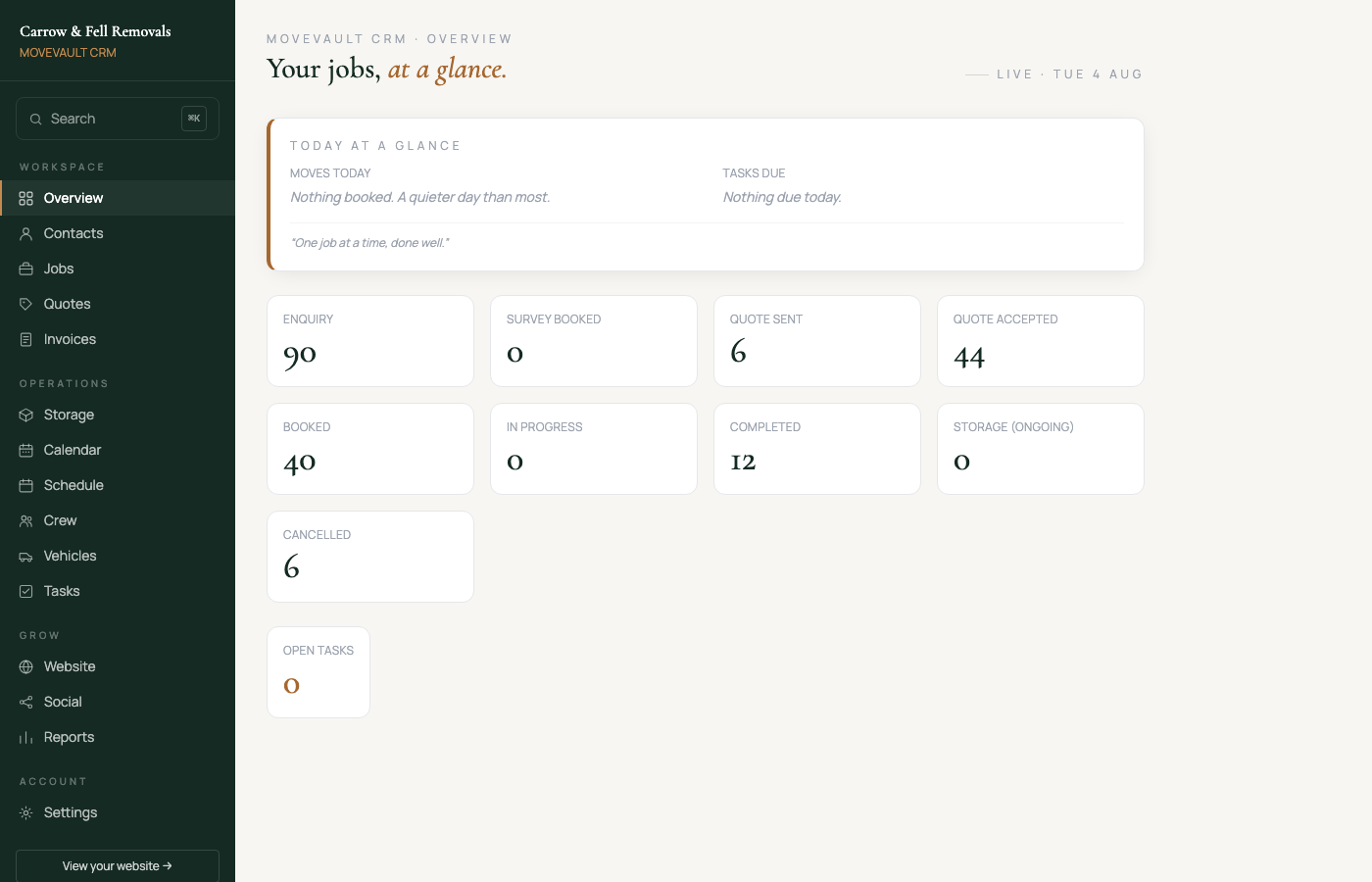
Your dashboard
A live view of today's moves, tasks due, and your pipeline by status. This is home base. Everything else is in the sidebar.
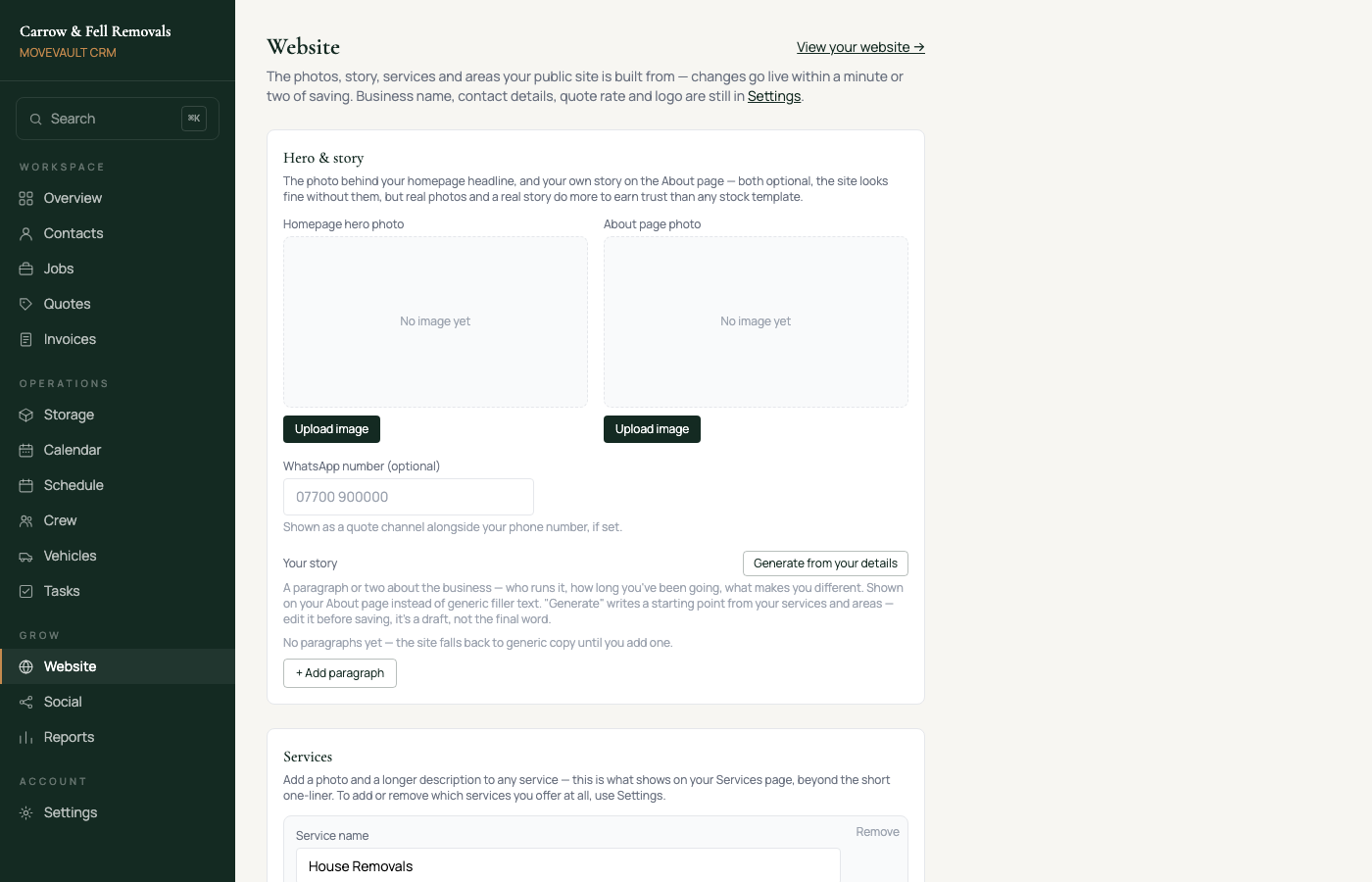
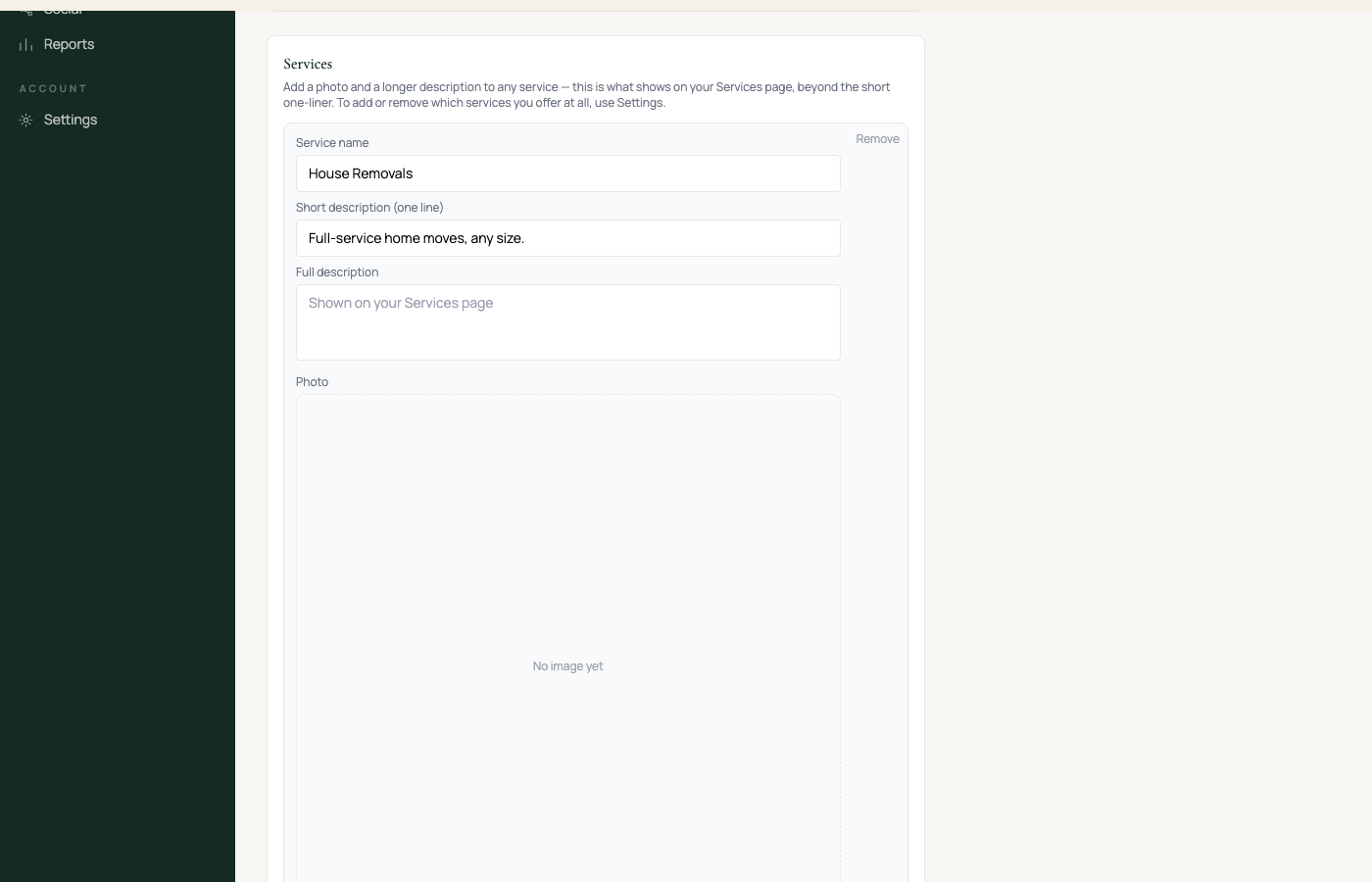
Website, photos, story, services
This is where your public site actually gets built. Upload a real hero photo and an about photo, write a couple of paragraphs about the business, and add a photo and longer description to each service. If you'd rather not write it from scratch, "Generate from your details" writes a starting point from what you've already entered. Edit it before saving, it's a draft, not the final word.
Website, areas, trust points, reviews, FAQ
Each area you cover gets its own page for search engines, a couple of real sentences about moves there does far more for local search than the town name alone. "Fill empty area blurbs" writes a starting point for any area you haven't gotten to yet, without touching ones you've already written. Trust points, testimonials and FAQ all work the same way further down the page.
Settings, business profile, logo, invoicing
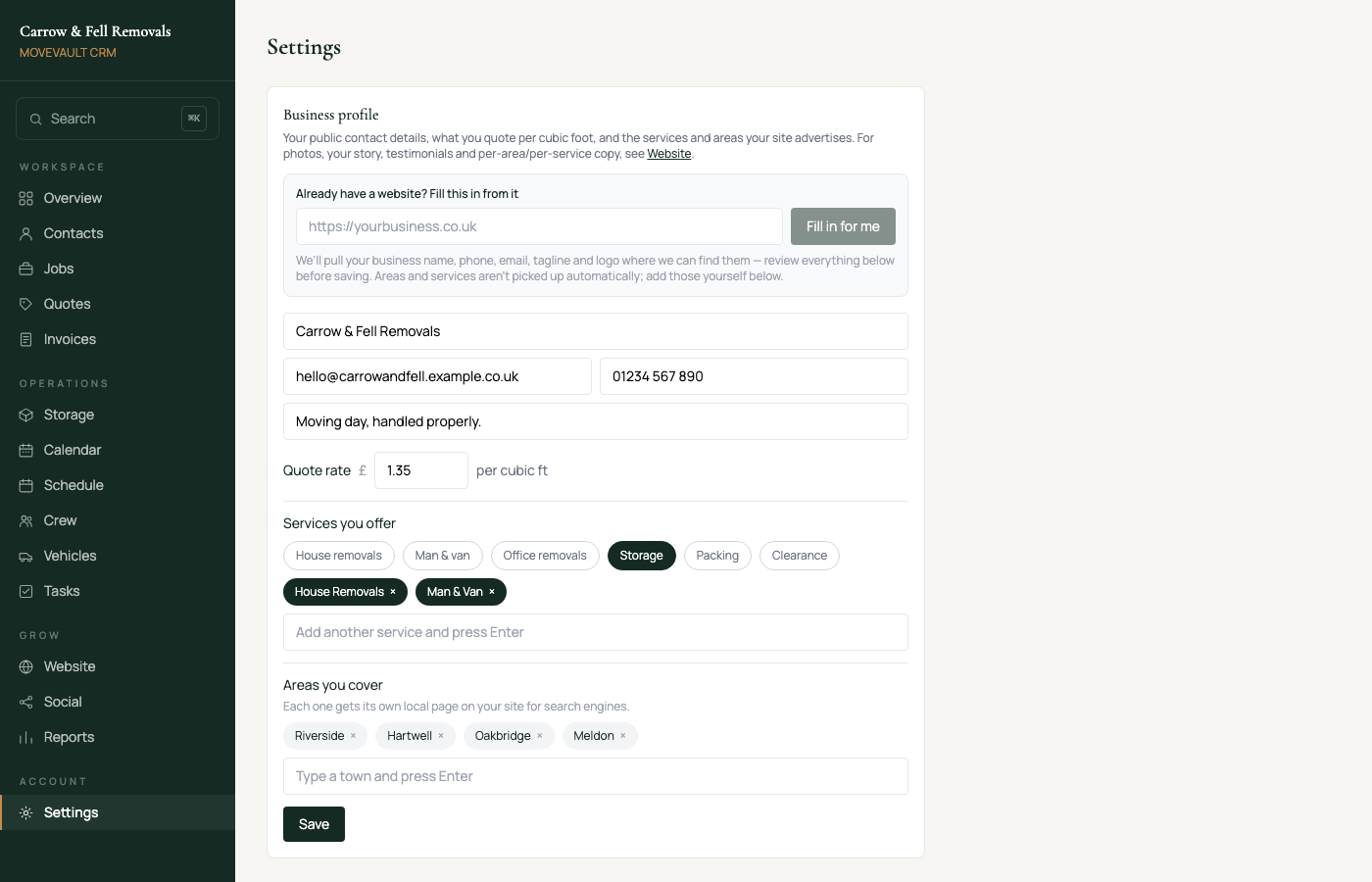
Your contact details, quote rate, logo, document colours, VAT settings, bank details and any custom domain all live here. "Fill this in from it" can pull your name, phone, email, tagline and logo straight from your existing website if you have one.
Using the CRM
The walkthrough above is about setting your public site up once. This is what each tool in the sidebar actually does, once you're up and running.
Today's moves, tasks due, and your pipeline by status.
Every customer, new enquiries land here automatically.
Every move, from first enquiry through to completion.
Send itemized, branded PDF quotes customers can accept online.
Deposits, balances, VAT and payment status in one place.
Containers, sites, manifests and rolling storage billing.
Every booked move, drag-and-drop to reschedule.
Assign crew and vehicles to each job.
Your team, their availability, and who's on what job.
Your fleet and its capacity.
Anything with a deadline, a call to make, a follow-up due.
The photos, story, services and areas your public site is built from.
Ready-to-post content for Facebook and Instagram.
Revenue, conversion rate and pipeline, live.
Ready to make it yours?
Sign in to your dashboard